Excel 2007 provides several different formats in which to display dates and times in a worksheet. Some date formats appear automatically based on how you type a date entry in a cell. For example, if you type 9/10 in a cell, Excel interprets this as a date and changes the entry to 10-Sep (or whatever your default date format is). Use the Format Cells dialog box to change the way a date appears in the worksheet. You can also use the Number Format drop-down list in the Number group on the Home tab to apply the Short Date, Long Date, or Time format to cell data.
>
>

>
1
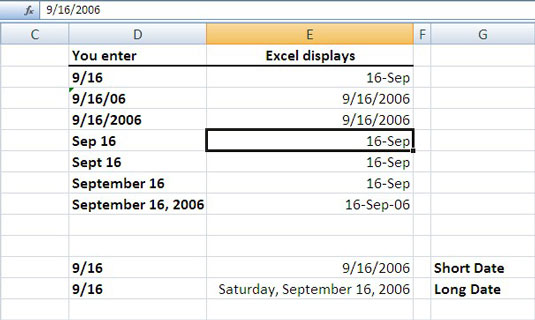
Enter a date into a cell.
>
Depending on what you type, Excel probably displays the date in a different format.
>
>
>
>
2
From the Home tab, click the Number dialog box launcher.
>
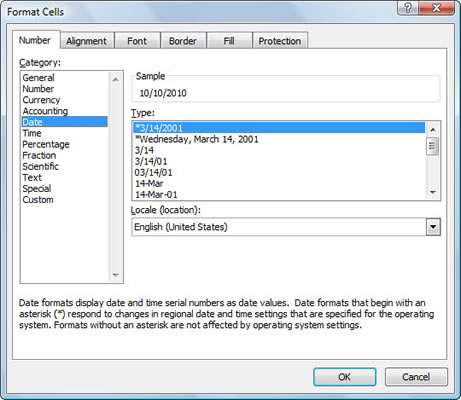
The Format Cells dialog box appears. You can also open this dialog box by press Ctrl+1.
>
>
>
>
3
Click Date in the Category list.
>
The right side of the screen displays a variety of different date formats.
>
>
>
>
4
Select a format for the selected cells.
>
Scroll down in the Type list to see other date formats, such as those that include the time along with the date.
>
>
>
>
5
Click OK.
>
The cell displays the date in the new format.
>
>
To display the current date in a cell and have Excel update the date, enter =TODAY() in the cell and press return. To enter today’s date as a static entry, press Ctrl+; (semicolon). To enter the current time as a static value, press Shift+Ctrl+: (colon).
>
dummies
Source:http://www.dummies.com/how-to/content/formatting-dates-in-excel-2007.html

No comments:
Post a Comment